
Cameras & Creators · Buying guide
The spare bedroom has become the office, the desk faces a north-facing window that never sees direct sun, and the first client call is at 09:00. On the other end of that call, a grey sky sits behind your head and your face is a silhouette. That is the problem a webcam is being asked to solve, and it is not the problem most webcam marketing talks about.
Buyers usually start with resolution, because that is the number printed largest on the box. For how you actually look on a call, it is close to the least important thing.
Lighting beats resolution
A webcam is a small camera with a small sensor, and the defining weakness of a small sensor is that it cannot gather much light. In a dim room the camera compensates by raising its sensitivity, and the visible result is noise — grainy speckle across your face and the wall behind you. Extra pixels do not fix a noisy image.
That gives a clear order of priority:
- Light on your face. A desk lamp behind the laptop, aimed at you, changes the picture more than any camera upgrade. This step costs nothing.
- A sensor that copes with the light you actually have. This is what separates a real webcam from a laptop camera.
- Convenience features — auto-framing, a usable mount, a privacy shutter.
- Resolution. Last, and rarely the constraint.
Move a lamp before you move your money. A well-lit laptop camera looks better on a call than a badly-lit premium webcam, and the lamp is the cheaper experiment.
Why 4K is wasted on most calls
A 4K image contains roughly four times the pixels of a 1080p one, and on a live call most of that is discarded before it reaches the other person. Conferencing platforms compress outgoing video aggressively and often cap the resolution they accept, so the detail you paid for never arrives. A 4K stream also needs a fast, stable uplink to be worth sending at all; on a weak connection the camera falls back regardless.
Higher resolution earns its keep when you record or produce video, because the file you keep is not subject to the platform’s compression. If you are only ever on live calls, treat resolution as a tiebreaker rather than a reason to spend more.
Sensor size is the specification to read
Based on published specifications, the models that hold up in a dim room are the ones with the largest sensor for their class. A larger sensor collects more light per pixel, which means less noise before any software correction is applied. When you compare webcams, treat the sensor description as more meaningful than the resolution figure, and be sceptical of a high resolution paired with a small sensor — that combination tends to produce a soft, noisy image in ordinary room light.
Auto-framing and motorised tracking are different things
Two very different features share the name “auto-framing”, and the distinction decides whether you need one.
Software auto-framing crops and pans within a fixed image. The camera stays still; the software decides which part of the frame to send. It is useful if you occasionally lean out of frame, and cheap to include.
Motorised tracking physically moves the camera to follow you. This is a different capability: it holds you in frame as you walk to a whiteboard, step back to demonstrate something, or teach while standing. If you present on your feet, tracking solves a real problem. If you sit at a desk, the motor is one more component that can fail and one more thing that can be confused by a busy background.
Do not overlook the shutter
A physical privacy shutter is a sliding cover over the lens. It does the same job as a software camera-off toggle, with one advantage: you can verify its state at a glance rather than trusting an indicator light or an application. It is a small feature that matters more than it sounds, particularly on a desk that other people in the house walk past.
Our picks
We have shortlisted three webcams for three different home-office realities. Each entry notes the published specification highlights the recommendation rests on, and — importantly — what you give up.
A note on how we choose. Techowire does not run a test lab. Our recommendations are based on manufacturers’ published specifications compared against the scenario you are reading about, plus a consistent editorial judgement about which trade-offs matter. We do not publish star ratings or claim hands-on measurements. Where a claim is inference rather than a verified fact, the wording says so.
Logitech MX Brio — for the dim room
The MX Brio is the upgrade that changes how you look on calls, and the reason is low-light handling rather than its 4K output. Based on published specifications it uses a large sensor with automatic light correction, which is exactly the tool for a north-facing room at nine in the morning. It includes auto-framing, a physical privacy shutter and a detachable mount that can be moved to a tripod.
What you give up: it is expensive for a webcam, the 4K mode needs a fast connection to be worth using, and some framing features require a software install. If your room is already well lit, the improvement over a mid-range camera is smaller than the cost suggests.
OBSBOT Tiny 2 Lite — for people who move while presenting
This is a motorised gimbal camera with subject tracking and gesture control, plus auto-framing for more than one person. If you teach, run demos or present while standing and moving, nothing at this level does the job as directly — the camera follows you rather than waiting for you to return to your seat.
What you give up: motors are one more thing to fail, tracking can be fooled by a busy background, and it is overkill for a static desk call. If you never leave your chair, this is capability you are paying for and not using.
Logitech Brio 500 — the sensible middle
The Brio 500 sits between a laptop camera and a premium webcam. Based on published specifications it offers 1080p with light correction, auto-framing and a built-in privacy shutter, and it works with the major call platforms. Light correction does the heavy lifting here, which is the feature that matters most in a normal room.
What you give up: it is 1080p rather than 4K, so it is not the camera for recording video you intend to keep; the mount is less flexible than the premium models; and the framing features need a software install.
How the three compare
| Logitech MX Brio | OBSBOT Tiny 2 Lite | Logitech Brio 500 | |
|---|---|---|---|
| Best for | Dim rooms, static desk | Presenting while moving | Everyday work calls |
| Published resolution | 4K | Not the headline spec | 1080p |
| Low-light approach | Large sensor with light correction | Good quality for its size | Light correction |
| Framing | Software auto-framing | Motorised subject tracking | Software auto-framing |
| Privacy shutter | Yes | Privacy modes | Yes |
| Main trade-off | Cost; 4K needs a fast link | Motors; overkill if you sit still | No 4K |
What not to overpay for
- 4K for live calls. Compressed, capped and frequently unnecessary. It is a recording feature, not a calling feature.
- A built-in ring light. A ring light mounted on a webcam is a small, very close light source. A separate lamp you can position does more.
- Multiple camera angles. One good camera in one good position beats three poor ones.
- The newest model. Successors mostly refine software and mounting. If an older model’s sensor suits your room, it remains a reasonable buy.
When you should not buy anything
If your laptop is a recent model with a decent camera and you take calls in a room with a window or a lamp, the honest answer is that a webcam is unlikely to change much. Spend the money on a lamp, raise the laptop on a stand so the camera sits closer to eye level, and check whether the platform you use is compressing your video harder than the camera deserves.
Buy a webcam when the room is genuinely dark, when you need to record video rather than just call, or when you present on your feet. Those are the cases where the money does something you cannot do for free.
Our picks
These are the models we would shortlist for the scenarios in this article. Each entry shows the published specification highlights, what the product is genuinely good at, and what you give up.
Logitech MX Brio
Logitech
The webcam upgrade that actually changes how you look on calls, mostly because of better low-light handling than a laptop camera. If your room is already well lit, the improvement is smaller than the price suggests.
What it does well
- Clearly better in dim rooms than laptop cameras
- Useful automatic framing
- Solid build with a real shutter
What to accept
- Expensive for a webcam
- 4K needs a fast connection to be worth using
- Software install required for full features
Best for: Home office calls · Low-light rooms · Presenting
Published specs: 4K webcam with large sensor; Auto-framing and light correction; Physical privacy shutter; Detachable mount for tripods.
Last checked: 2026-09-28
OBSBOT Tiny 2 Lite
OBSBOT
A motorised gimbal camera that follows you around the room. If you teach, demo or present while moving, nothing else at this price does the job; if you sit still, the motor is just a liability.
What it does well
- Tracking keeps you in frame while moving
- Gesture controls work without touching the keyboard
- Good image quality for the size
What to accept
- Motors are one more thing to fail
- Tracking can be fooled by busy backgrounds
- Overkill for static calls
Best for: Teaching · Demo videos · Streaming
Published specs: Motorised gimbal webcam with subject tracking; Gesture control; Auto-framing for multiple people; Privacy modes.
Last checked: 2026-09-28
Logitech Brio 500
Logitech
The sensible mid-point between a laptop camera and a premium webcam. Light correction does the heavy lifting, and the privacy shutter is a genuine reassurance rather than a gimmick.
What it does well
- Noticeably better than a laptop camera
- Physical shutter for privacy
- Reasonable price
What to accept
- 1080p only, no 4K
- Mount is less flexible than premium models
- Software install needed for framing features
Best for: Work calls · Students · Laptop users without a good camera
Published specs: 1080p webcam with light correction; Built-in privacy shutter; Auto-framing; Works with most video call platforms.
Last checked: 2026-09-28
Frequently asked questions
Is 4K worth it for video calls?
Rarely, and never as the main reason to buy. Most conferencing platforms compress outgoing video heavily and often cap the resolution they accept, so the extra detail does not reach the other person. 4K is a recording feature. If you capture and keep footage, it helps; if you only ever join live calls, treat it as a tiebreaker rather than a reason to spend.
Why does my webcam look grainy?
Because the room is dark. A small sensor in low light raises its sensitivity to compensate, and the visible result is noise across your face and the background. The fix is more light on your face, not more pixels. A desk lamp aimed at you from behind the laptop will change the image more than a camera upgrade will.
Do I need auto-framing?
It depends on whether you move. Software auto-framing crops within a fixed image and is a convenience for someone who stays near the desk. Motorised tracking physically follows you around the room, which genuinely helps if you teach, demo or present while standing. If you sit still for every call, neither feature earns its place.
Should I buy a webcam if my laptop already has one?
Only in specific cases: the room is genuinely dark, you need to record video rather than just call, or you present on your feet. If your laptop camera is recent and you have a window or a lamp, the money is usually better spent on lighting and a stand that raises the laptop closer to eye level.
Related
Cameras
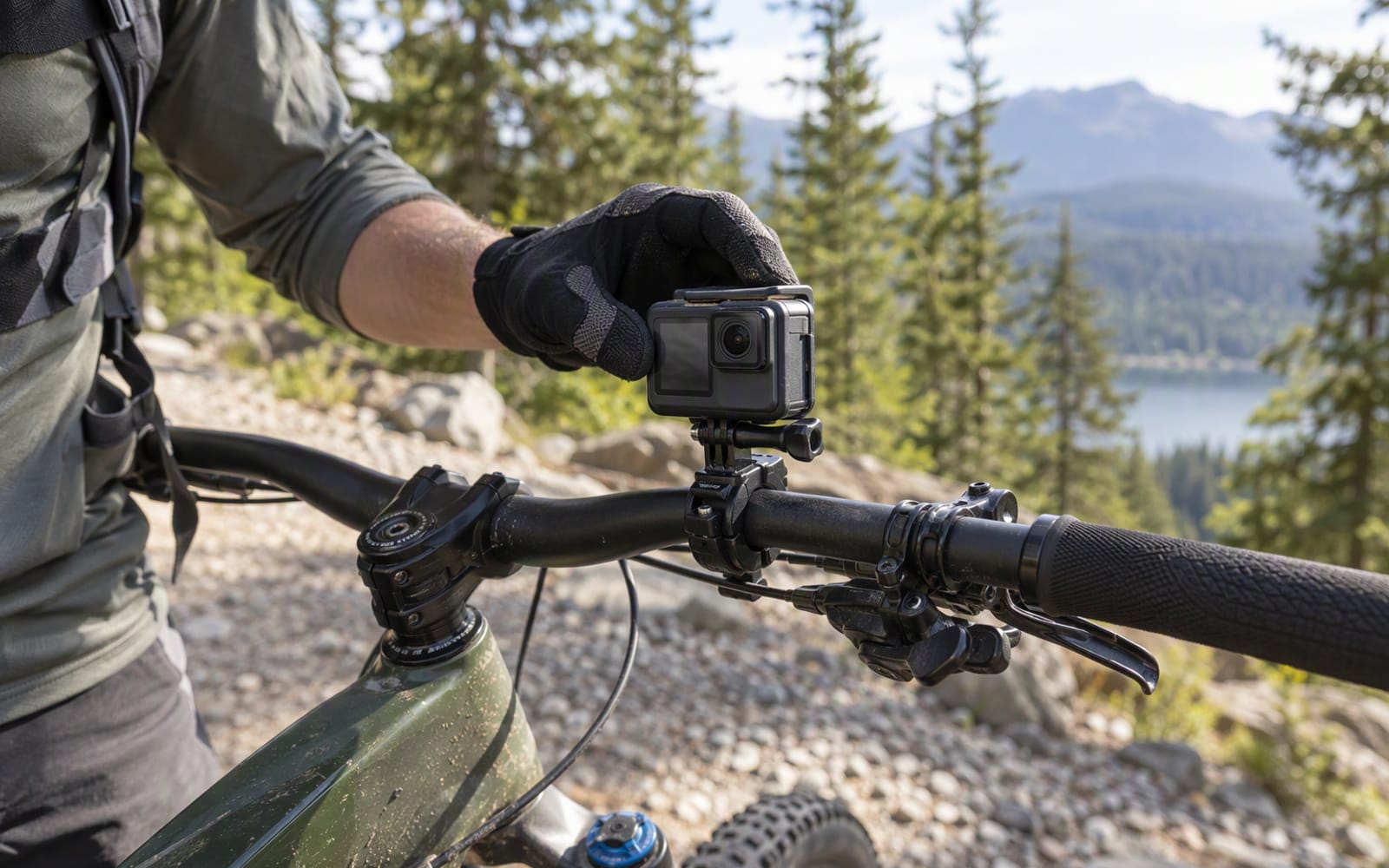
Action Cameras vs Phone Video: Which Do You Need?
Your phone already shoots good video. Here is when an action camera genuinely earns its place, and when the money is better left in your pocket.
Cameras
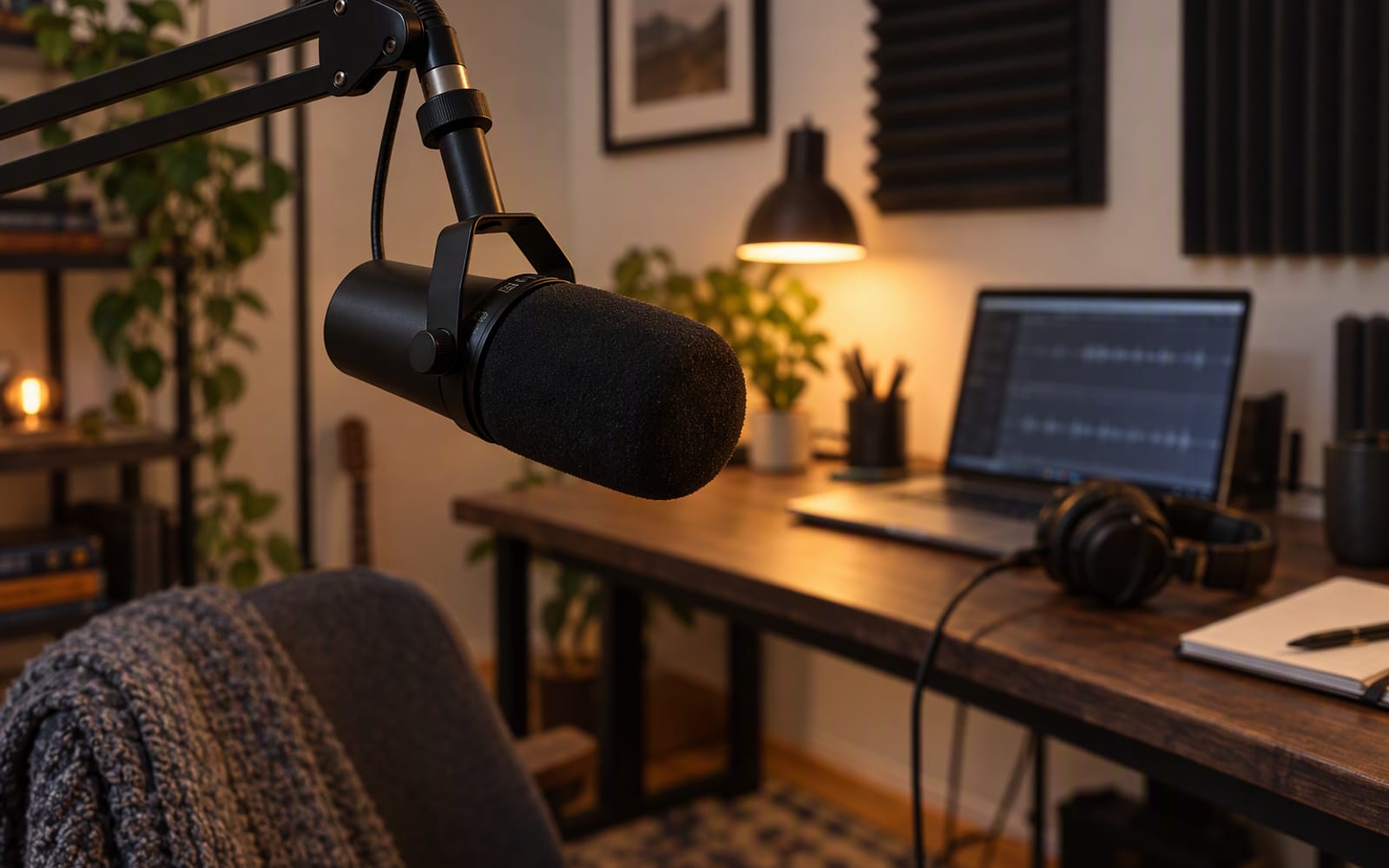
Best Microphones for Podcasting at Home
An untreated room decides which microphone suits you. Here is how dynamic and condenser capsules differ, and which three home models we would shortlist.
Cameras
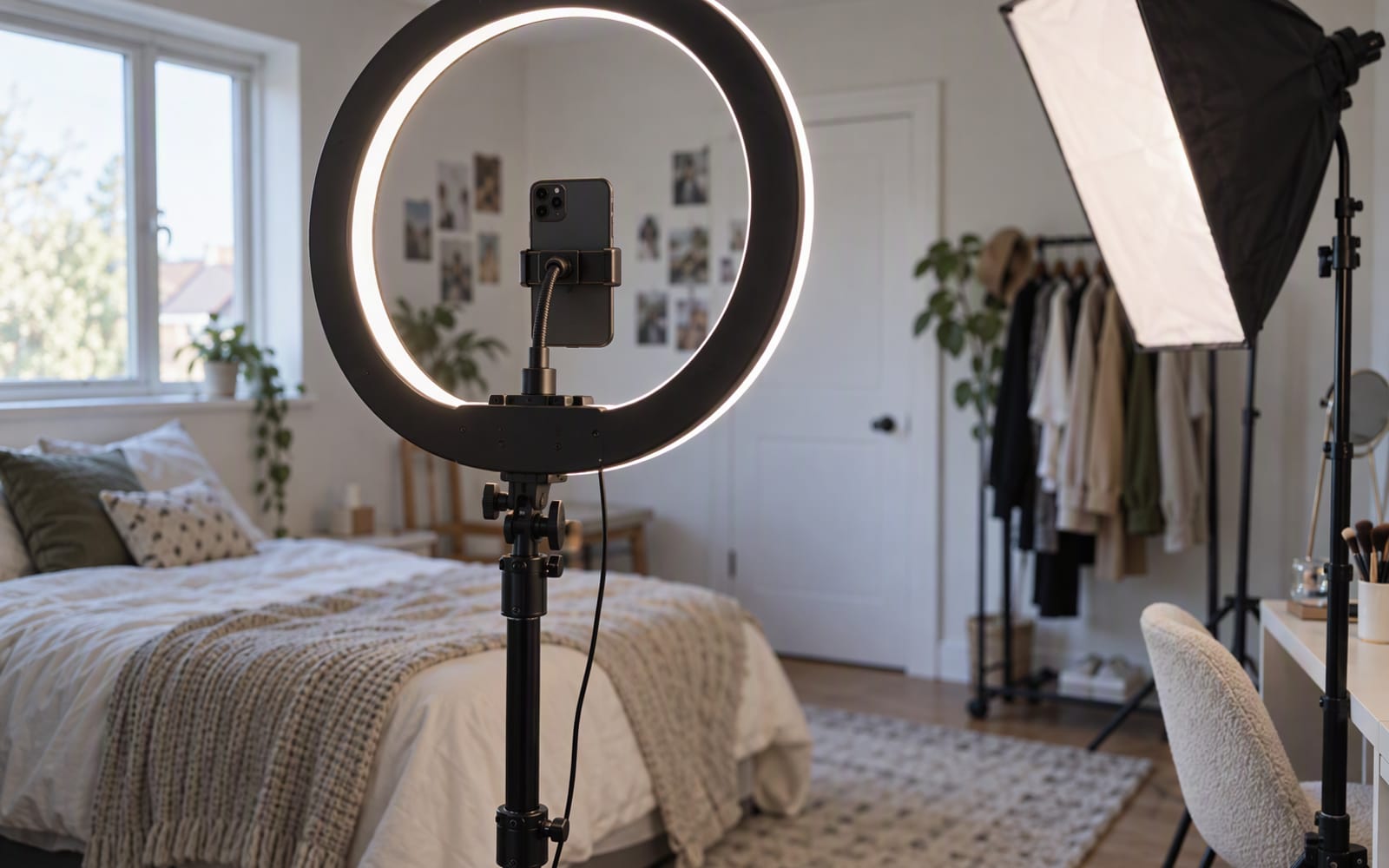
Ring Lights vs Softboxes: A Beginner's Lighting Guide
Ring lights give flat, shadowless light; softboxes let you shape a scene. Here is how to choose your first light, and when a window does the job for free.