
Desk & Workspace · Guide
The back of a monitor is where cables breed. You plug in a laptop charger, then a monitor cable, then a phone cable, then a webcam, and a year later there is a knot behind the desk that you are slightly afraid to touch because one of the cables in there is load-bearing.
The instinct at that point is to buy something — a sleeve, a tray, a box of clips. That instinct is the problem. Cable management is not a product category, it is a sequence of three jobs, and the products only help with the last one.
The order matters more than the products
The three jobs are reduce, route, hide, and they have to happen in that order. Reducing the number of cables removes problems. Routing and hiding move problems somewhere less annoying. If you start with hiding, you are tidying a knot rather than untangling it, and the knot will come back the next time you change a device.
Rule of thumb: if you cannot unplug everything from your desk and put it back in under a minute, the setup is not finished — it is just hidden.
Step one: reduce
Count the cables that are plugged in right now. Most desks carry more than the devices require, because every device arrived with its own charger and its own cable.
Three reductions do most of the work:
- One high-wattage charger instead of several. A 100 W GaN charger with multiple USB-C and USB-A ports can stand in for a laptop brick, a phone charger and an earbuds charger at the same time. One brick on the desk, one cable to the wall.
- One cable rated for laptop wattage. A USB-C cable rated to 240 W handles every device you own, which removes both the guessing game about which cable charges which thing and the slow-charge disappointment that follows a wrong guess.
- The device you never needed. A second charger left plugged in “just in case” is the most common single cable on a desk. If you have not used it this month, it is clutter.
A compact USB-C hub is worth considering if your laptop is short of ports, because it replaces several one-purpose dongles with a single connection. Be aware that a hub is also a single point of failure and can run warm when it is driving a display, so it is a consolidation tool rather than a free win.
Step two: route
Once you have fewer cables, decide where each one goes.
- Group by destination, not by device. Cables going to the wall go together. Cables staying on the desk go together. This one decision removes most of the crossings.
- Follow edges. A cable that runs along the back of the desk and down a leg is invisible and untroubled. A cable that cuts diagonally across open space is the one you snag.
- Leave slack where things move. If the desk rolls, or you pull the laptop forward, a tight cable becomes a broken port. A loop of slack behind the desk costs nothing.
- Keep power cables out of the path of your hands and feet. Not for safety theatre — simply because a cable you kick is a cable that unplugs.
Step three: hide
Only now do the products make sense.
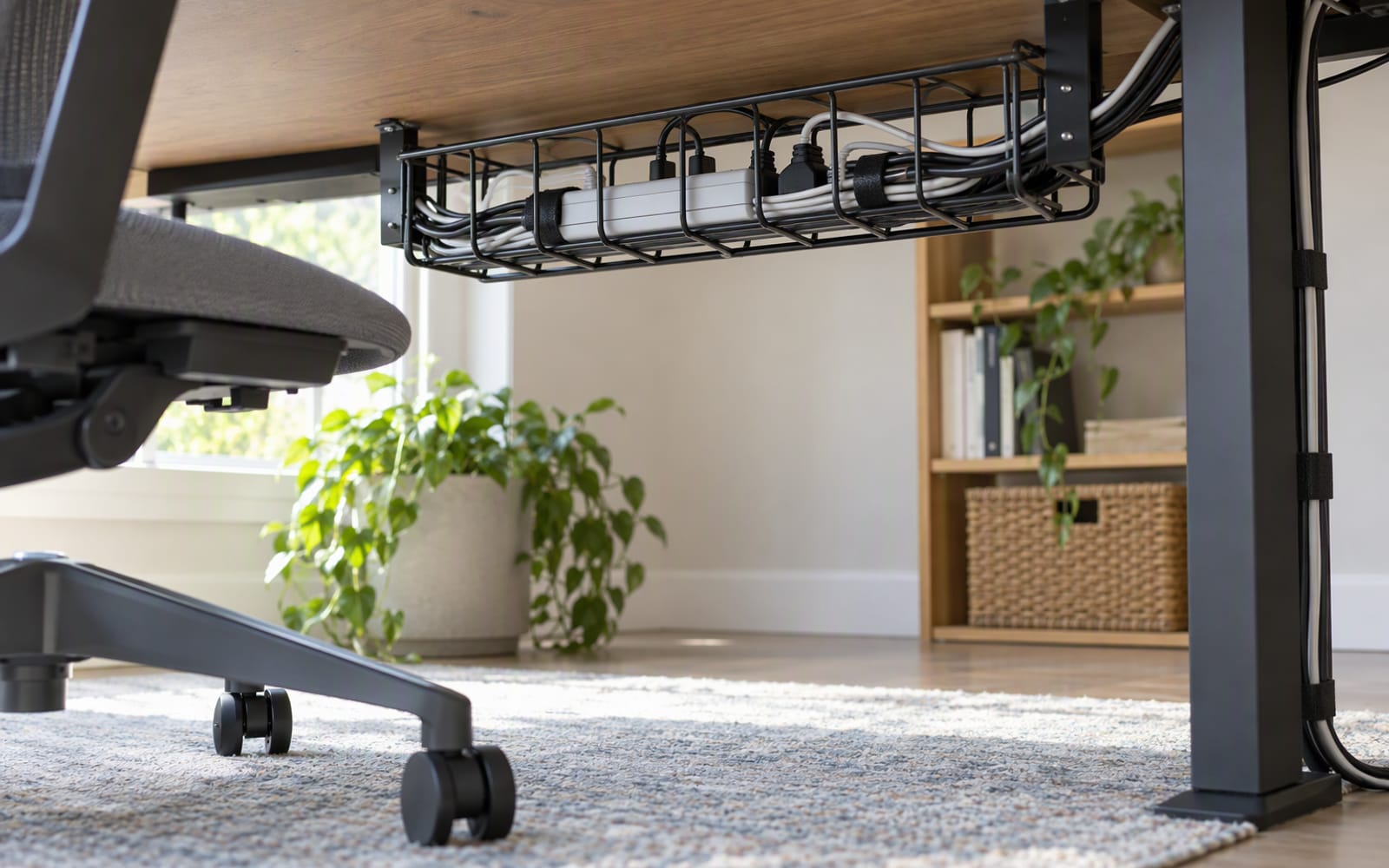
Under-desk trays hold a power strip and the bricks that feed it, which is the single biggest visual improvement available. Two caveats: check that the tray does not sit somewhere you kick, and do not seal a charger into a closed box that gets warm in use.
Cable sleeves bundle the runs you cannot hide. Clips hold a single cable exactly where you want it. Neither is expensive and neither is essential.
Labelling is the cheapest upgrade here
Label both ends of every cable that goes somewhere you cannot see. The label at the device end tells you what to unplug; the label at the power end tells you what you are about to unplug.
Use a physical label — a wrap-around tag, or a strip of tape and a pen. An app that remembers your cables is an app you will not open while you are crouched behind a desk.
The products worth buying
Three items that do the reduction step well, in rough order of impact.
Anker Prime 100W GaN Charger — the reduction workhorse. One 100 W brick with several USB-C and USB-A ports replaces the pile of chargers that caused most of the mess, and the folding prongs make it packable if the desk moves. Be aware that total output is shared across the ports, so three devices charging at once will not all get full speed, and it can run warm under sustained load.
UGREEN 240W USB-C Cable — the cable that removes the guessing. Most USB-C cables top out well below laptop wattage, which is why a laptop can charge slowly on the wrong one. A 240 W rated cable works with everything you are likely to buy for years. It is stiffer than a basic cable, and it is overkill if you only ever charge a phone.
Satechi USB-C Travel Hub — for the laptop with too few ports. HDMI, USB-A and a card reader on one bus-powered block, small enough for a laptop sleeve. It covers the connections a modern thin laptop lacks. It will not replace a full dock if you need Ethernet or several displays.
| Job | What it fixes | What it costs you |
|---|---|---|
| Reduce | Fewer cables to route and hide | One good charger and one rated cable instead of the free ones in the drawer |
| Route | Cables that snag, pull and unplug | A little slack and a few clips |
| Hide | The visible knot | A tray, and somewhere to put it |
| Label | The panic when you unplug the wrong thing | A pen |
What not to buy first
- Cable-management boxes. They hide the problem and trap the heat. Buy one only after you have fewer cables.
- Adhesive clips on a rented wall or a textured finish. They fail, and they take the paint with them.
- Longer cables to “sort out” a run. A longer cable is usually a worse cable once it is coiled behind a desk.
- A second power strip. If you need a second strip, you have not finished step one.
When you should not buy anything
If you work from a different desk every day, a permanent cable setup is wasted effort. Carry one charger, one rated cable and one small hub, and accept that a desk you do not own will always be a compromise.
And if your current setup works — everything is plugged in, nothing snags, and you can find the right cable — leave it alone. Tidiness is a preference, not a requirement, and a desk that functions is already doing the job.
Our picks
These are the models we would shortlist for the scenarios in this article. Each entry shows the published specification highlights, what the product is genuinely good at, and what you give up.
Satechi USB-C Travel Hub
Satechi
A small hub that adds HDMI, USB-A and a card reader to a laptop that has nothing but USB-C. The exact combination of ports is what makes it worth carrying rather than a generic dongle.
What it does well
- Covers the ports a modern laptop lacks
- Small enough for a laptop sleeve
- No external power needed
What to accept
- Limited number of ports
- Can run warm with HDMI active
- No Ethernet on this model
Best for: Hotel desks · Presentations · Laptop port shortages
Published specs: Compact USB-C travel hub; HDMI output for hotel TVs and projectors; USB-A and card reader; Bus-powered from the laptop.
Last checked: 2026-10-06
Anker Prime 100W GaN Charger
Anker
One charger for a laptop, a phone and earbuds is the whole promise of GaN, and this delivers it in a body small enough for a jacket pocket. Check the port allocation before assuming all three get full speed at once.
What it does well
- Replaces several chargers when travelling
- Compact for the wattage
- Solid build
What to accept
- Shared wattage drops when all ports are used
- Can run warm under sustained load
- Premium price
Best for: Laptop and phone together · Travel · One-brick setups
Published specs: 100 W GaN wall charger; Multiple USB-C and USB-A ports; Foldable plug prongs; Intelligent power distribution across ports.
Last checked: 2026-10-02
UGREEN 240W USB-C Cable
UGREEN
Most USB-C cables are limited to 60 W or 100 W, which is why laptops charge slowly on the wrong cable. A 240 W rated cable removes that guesswork and works with everything you will buy for years.
What it does well
- Handles every current power standard
- Durable braided construction
- Works with laptops and phones alike
What to accept
- Stiffer than a basic cable
- Overkill if you only charge a phone
- Costs more than an unrated cable
Best for: Laptop charging · High-wattage setups · Buying once
Published specs: USB-C to USB-C cable rated to 240 W; Supports high-speed data transfer; Braided jacket for durability; Length options from short to long.
Last checked: 2026-10-02
Frequently asked questions
How many cables does a desk actually need?
Fewer than are usually plugged in. Most desks carry a charger for every device, including the one that arrived in the box and has never been used. If you have not unplugged a charger in a month, it is clutter rather than redundancy.
Are under-desk trays worth the effort?
They are the single biggest visual improvement available, because they hold the power strip and the bricks that feed it. Two things to check first: that the tray is not somewhere you kick, and that it is not a sealed box that traps heat from a charger in use.
Should I label cables?
Label both ends of anything you cannot see. The label at the device end tells you what you are unplugging; the label at the power end tells you what you are about to unplug. Use a physical tag rather than an app — you will not open an app while crouched behind a desk.
Do I need a high-wattage charger?
If you charge a laptop, yes. A single high-wattage charger with several ports can replace a laptop brick, a phone charger and an earbuds charger at once, which removes three cables rather than hiding them. If you only charge a phone, a smaller charger is fine and the extra wattage is wasted.
Related

Workspace
Best Laptop Stands for Neck and Shoulder Pain
A laptop stand raises the screen to eye level, and it only works if you add an external keyboard. How to choose between fixed, adjustable and portable designs.

Workspace
Best Ergonomic Keyboards for All-Day Typing
Split layouts, low-profile comfort and mechanical feel solve three different problems. How to choose a keyboard for long typing days, and when it is not the answer.

Audio
Best Noise-Cancelling Headphones for Open-Plan Offices
Open-plan offices are the hardest listening environment there is. Here is how to choose noise-cancelling headphones for a shared desk, and which models we would shortlist.